
Published: June 17, 2026 | Category: FortiGate | Author: Bhardwaj Vishnu
Applies to: FortiGate (all models) · FortiOS 6.x / 7.x · Method: Manual License Restore via TFTP
FortiGate license
Most FortiGate licensing guides assume one thing: that your firewall has internet access. In the real world, that’s not always true. You might be staging a FortiGate in an isolated lab, working in an air-gapped environment, doing a fresh RMA replacement before the unit is patched onto the network, or simply troubleshooting a unit where the WAN link isn’t up yet. In all of these cases, FortiGate’s normal “auto-update license from FortiGuard” workflow simply isn’t available.
The good news is that Fortinet built a fallback for exactly this scenario: manual license restoration over TFTP. Instead of pulling the license from FortiGuard’s servers over the internet, you push the .lic file directly to the FortiGate from a TFTP server sitting on the same local network.
I use this method regularly during FortiGate staging and TAC-related work, and it’s reliable once you know the steps. Here’s the full walkthrough.
When You’d Use This Method
A few real scenarios where this comes up:
- New unit registration without internet — the firewall is on a bench network or isolated VLAN with no route out
- RMA replacements — the replacement unit needs its license applied before it goes live
- Air-gapped or classified networks — internet access to FortiGuard isn’t permitted by policy
- WAN not yet provisioned — you’re staging hardware in advance of the actual circuit installation, often before HA pairing or LACP bundling on the uplinks has even been configured
In every case, the requirement is the same: you need the .lic file (downloaded earlier from the FortiCare portal while you did have internet access, on another machine) and a TFTP server reachable from the FortiGate’s management or console-accessible interface.
What You’ll Need Before Starting
- The
.licfile for your unit, downloaded from FortiCare under Asset Management. This file is tied to your FortiGate’s serial number, so make sure you’ve grabbed the correct one. - A TFTP server application — Tftpd64 by Ph. Jounin is the standard choice most engineers reach for. It’s free, lightweight, open-source (source available on GitHub), and works reliably on Windows.
- Console or SSH/CLI access to the FortiGate.
- A network path between the TFTP server machine and the FortiGate interface you’re using — even a direct Ethernet cable between a laptop and the FortiGate’s management port works fine.
Step 1: Set Up Your TFTP Server
Download and open Tftpd64 on the machine that will host the license file. The interface is minimal by design — there isn’t much to configure.
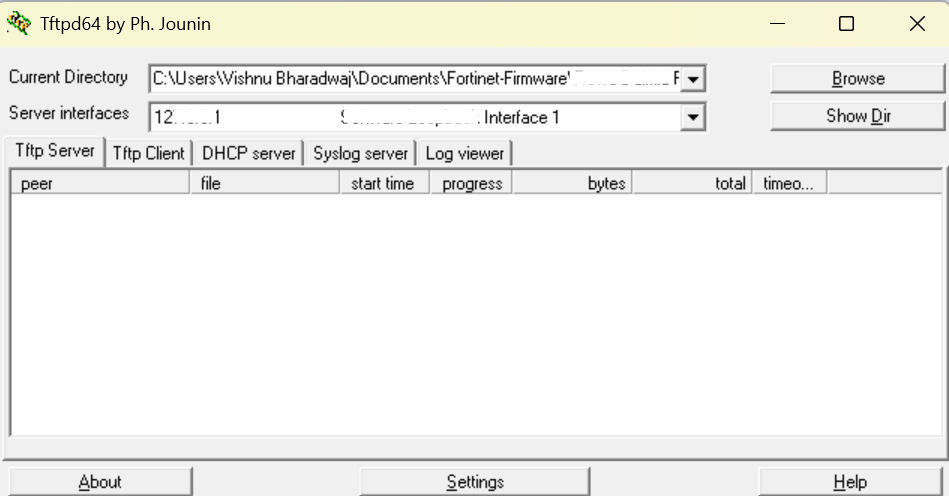
Two fields matter here:
- Current Directory — point this to the folder where your
.licfile is sitting. In the screenshot above, that’s a dedicatedFortiGate-Licensefolder, but it can be anywhere on your machine. - Server interfaces — this is the IP address Tftpd64 will listen on. Make sure this matches the network adapter that’s actually connected to the FortiGate. If your laptop has multiple adapters (Wi-Fi, Ethernet, a VPN virtual adapter), pick the one in the same subnet as the FortiGate interface you’re targeting.
Leave the Tftp Server tab active — that’s the one we need. Tftpd64 also bundles a TFTP client, DHCP server, and syslog server, but none of those are relevant for this task.
One thing worth flagging: Windows Firewall sometimes blocks inbound TFTP traffic by default. If the transfer hangs at “Connect to tftp server,” check that Tftpd64 has been allowed through the firewall, or temporarily disable it for the test.
Step 2: Confirm the FortiGate Can Reach the TFTP Server
Before running the restore command, it’s worth a quick sanity check from the FortiGate CLI:
FortiGate-200G # execute ping 192.168.1.110If that doesn’t respond, fix the IP addressing or cabling before going further — the license restore command will simply time out with the same generic connection failure either way, so it’s faster to rule out basic reachability first. If you’re staging a unit that will eventually sit behind an LACP-bonded uplink, it’s worth doing this licensing step over a single dedicated interface first, before LACP negotiation is introduced into the picture.
Step 3: Run the Manual License Restore Command
This is the core command. From the FortiGate CLI:
FortiGate-200G # execute restore manual-license tftp <filename>.lic <tftp-server-ip>In practice, that looks like this:
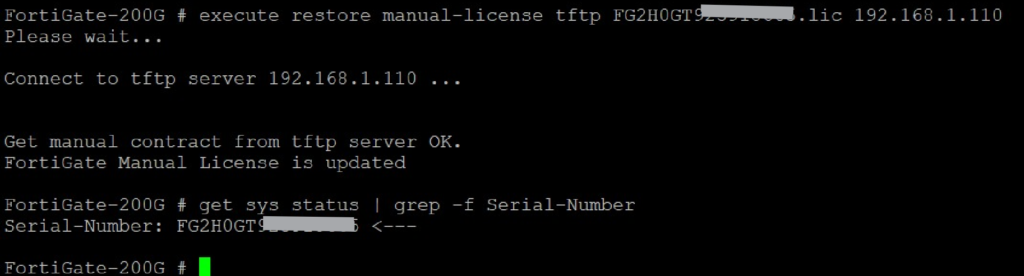
A successful run looks exactly like the output above:
Please wait...

Connect to tftp server 192.168.1.110 ...

Get manual contract from tftp server OK.
FortiGate Manual License is updated
That last line — “FortiGate Manual License is updated” — is your confirmation. The license has been pulled across and applied.
Step 4: Verify the License Was Applied
Don’t just trust the success message — confirm it against the unit’s actual serial number:
FortiGate-200G # get sys status | grep -f Serial-NumberThe output should show the serial number that matches your .lic file:
Serial-Number: FG2H0GT000000000 <---If this matches the serial number on the license file you downloaded from FortiCare, you’re done. The FortiGate is now licensed without ever touching the internet.
Common Issues and Fixes
“Connect to tftp server” hangs or times out. Almost always a reachability or firewall problem. Double-check the IP subnet, confirm the correct network adapter is selected in Tftpd64, and verify Windows Firewall isn’t silently dropping the inbound TFTP session.
Wrong .lic file used. Each license file is bound to a specific serial number. If you grabbed the wrong file from FortiCare, the restore will either fail outright or apply incorrectly — always verify the serial number in the filename matches your unit before running the command.
File not found by the TFTP server. Make sure the .lic file is sitting directly inside the folder set as Current Directory in Tftpd64 — not in a subfolder.
What Comes Next After Licensing
Once the license is applied, the unit is ready for its real configuration work. Depending on what you’re deploying, that typically means setting up IPsec remote access VPN, pushing DHCP over an IPsec tunnel for remote subnets, or enabling web filtering policies before the unit goes into production. If something doesn’t behave as expected further down the line, FortiGate’s debug commands for packet flow and IPsec are the next stop — and if you’re working on a higher-end model, it’s also worth understanding how traffic actually moves through the FortiASIC NP7/CP9/SP5 pipeline at the hardware level, since that affects how some debug output should be interpreted.
Final Thoughts
Manual TFTP license restoration is one of those FortiGate features that barely gets mentioned until the day you actually need it — usually when you’re standing in a server room with no internet drop and a deadline. Once you’ve done it once, it takes under five minutes: stand up Tftpd64, point it at your .lic file, run one CLI command, and verify the serial number.
It’s a good habit to keep a TFTP server pre-installed on your staging laptop if you do FortiGate deployments regularly — you won’t need it often, but when you do, you’ll be glad it’s already there.
Frequently Asked Questions
Can I upload a FortiGate license without an internet connection?
Yes. The execute restore manual-license tftp command lets you push a .lic file directly to the FortiGate from a TFTP server on the same local network, with no path to FortiGuard or the internet required at all.
What format does the FortiGate license file need to be in?
The license file must be the exact .lic file downloaded from the FortiCare portal under Asset Management. It’s a small text-based contract file bound to your unit’s specific serial number — you can’t substitute a license file from a different unit.
Why does the TFTP transfer hang at “Connect to tftp server”?
This is almost always a reachability issue — either the TFTP server’s listening interface doesn’t match the subnet the FortiGate is on, or Windows Firewall is silently blocking the inbound TFTP session. Ping the TFTP server IP from the FortiGate CLI first to rule out basic connectivity before troubleshooting further.
Do I need a specific TFTP server application?
No, any standards-compliant TFTP server works, but Tftpd64 by Ph. Jounin is the most commonly used option among network engineers for this task, since it’s free, lightweight, and requires no real configuration beyond setting the directory and interface.
How do I confirm the license actually applied correctly?
Run get sys status | grep -f Serial-Number on the FortiGate and confirm the returned serial number matches the one in your .lic filename. The “FortiGate Manual License is updated” success message is a good sign, but checking the serial number is the real confirmation.
Does this method work for FortiGate HA pairs?
Yes, but each unit in the HA pair needs its own license applied individually using its own serial-number-matched .lic file before HA synchronization is configured. See our FortiGate HA commands and debug guide for the full HA setup sequence.
Can I use this same TFTP method to upload firmware instead of a license?
Not with this specific command — execute restore manual-license is license-only. Firmware uploads use a different command (execute restore image tftp), though the same TFTP server and reachability principles apply.
🔧 Free Network Tools
Handy while you're troubleshooting — no signup needed.