
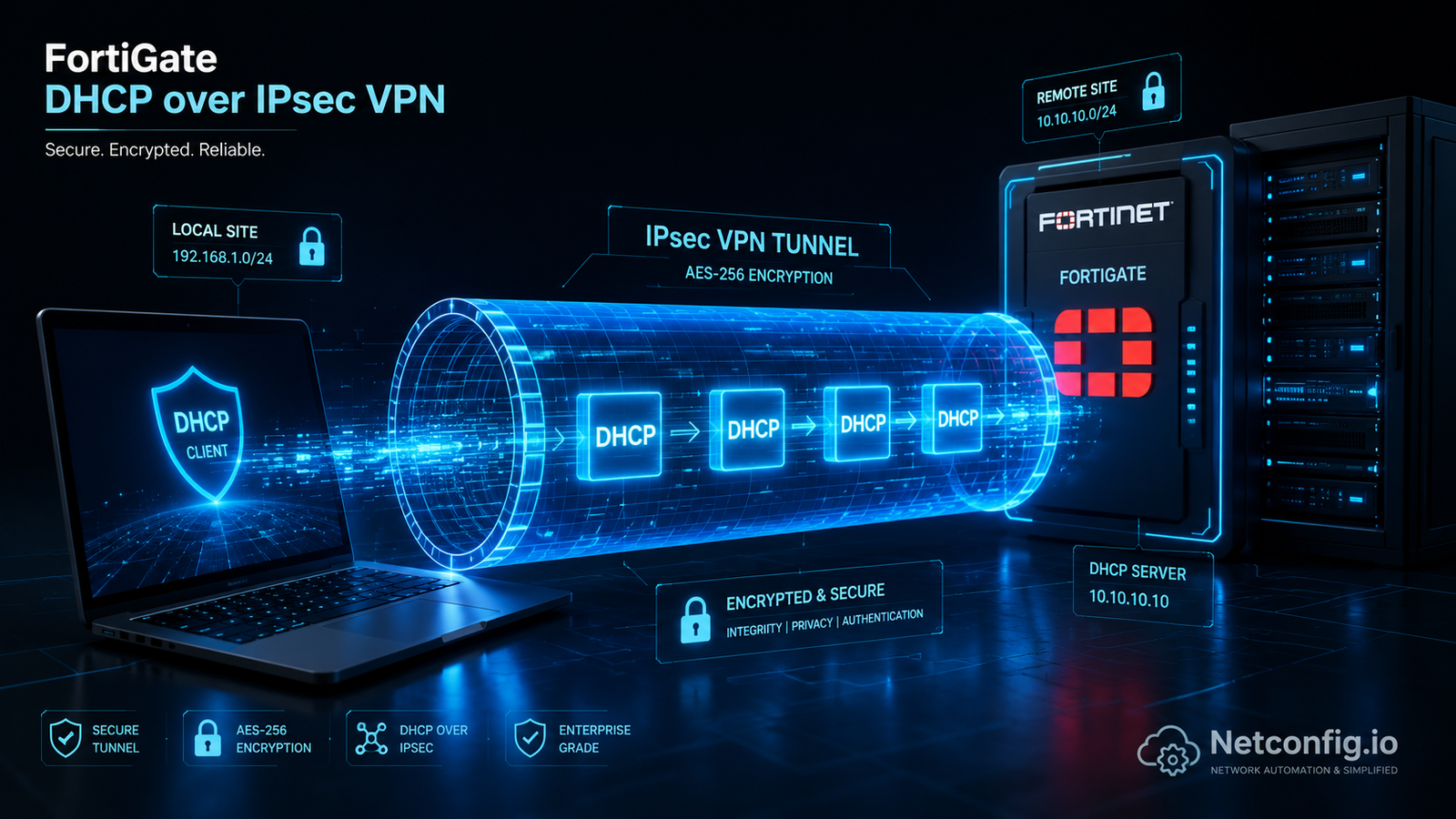
Introduction to FortiGate DHCP over IPsec VPN
When you deploy a FortiGate Remote Access VPN (Dial-Up IPsec), the default and most heavily documented method for assigning IP addresses to remote clients is Mode Config. Mode Config is highly automated — it pushes virtual IP addresses, DNS server settings, and split-tunneling routes down to the FortiClient automatically.
But I’ve run into plenty of setups where Mode Config isn’t an option, and you have to fall back on a more traditional standard: DHCP over IPsec.
In this architecture, you strip away the automation. Mode Config gets disabled entirely, and a literal DHCP server runs on the FortiGate’s virtual IPsec tunnel interface instead. FortiClient initiates the tunnel, and once Phase 2 is established, it broadcasts standard DHCP Discover messages (UDP ports 67/68) directly through the encrypted payload to obtain its networking parameters.
Here’s how to configure DHCP over IPsec on a FortiOS device, the specific (and often hidden) CLI commands it needs, and how to set up the FortiClient side to match.
1. Why Choose DHCP over IPsec?
Before the configuration, it’s worth understanding why you’d pick this over the standard Mode Config:
- Centralized IP Address Management (IPAM): DHCP over IPsec integrates cleanly with central DHCP relay agents. If your organization requires a dedicated Windows Server or Linux DHCP daemon to handle all IP allocations for auditing purposes, DHCP over IPsec lets you relay those requests.
- Strict Compliance & Legacy Integration: Some legacy applications or strict zero-trust environments require standard DHCP lease negotiation (DORA) rather than firewall-pushed virtual IPs.
- Granular Control & Reservations: It lets you use standard DHCP MAC-address reservations for specific VIP remote users.
2. Phase 1 & Phase 2 Cryptographic Configuration
Configuring the cryptographic tunnel for DHCP over IPsec needs careful attention to the settings — you’re building a Dial-Up VPN while deliberately turning off the automation features standard FortiClient IPsec tunnels rely on.
Step 2.1: Phase 1 Configuration (The IKE Gateway)
Phase 1 establishes the initial secure channel (IKE SA) between the FortiClient and the FortiGate.
Via the FortiOS GUI:
- Navigate to VPN > IPsec Tunnels and click Create New > IPsec Tunnel.
- Name the tunnel (e.g.,
Remote_Access_DHCP) and select the Custom template. Click Next. - Network Section:
- IP Version: IPv4
- Remote Gateway: Select Dialup User (tells FortiOS to expect connections from unknown, dynamic public IPs).
- Interface: Select your public-facing interface (e.g.,
wan1). - NAT Traversal: Enable (needed since remote workers are almost always behind a home router).
- Authentication Section:
- Method: Pre-shared Key
- Pre-shared Key: Enter a strong PSK.
- Mode: Aggressive (needed for dial-up VPNs).
- Peer Options: Select Accept any peer ID.
- Phase 1 Proposal Section:
- Encryption:
AES256| Authentication:SHA256 - Diffie-Hellman Group:
14
- Encryption:
- XAuth / Mode Config Section (the step that matters most here):
- Mode Config: uncheck this box. This stops the FortiGate from automatically pushing virtual IPs — it’s the defining step of a DHCP over IPsec deployment.
Via the FortiOS CLI (Phase 1 equivalent):
config vpn ipsec phase1-interface
 edit "Remote_Access_DHCP"
 set type dynamic
 set interface "wan1"
 set ike-version 1
 set mode aggressive
 set peertype any
 set net-device disable
 set proposal aes256-sha256
 set dpd on-demand
 set dhgrp 14
 set psksecret "YourSecureKey123!"
 set mode-cfg disable # disables automatic IP assignment
 next
end
Step 2.2: Phase 2 Configuration (The IPsec SA)
Phase 2 handles the actual encryption of the payload data and defines the “interesting traffic” allowed to traverse the tunnel.
Via the FortiOS GUI:
Under Phase 2 Selectors, click the pencil icon to Edit the default selector.
Name:
Remote_Access_DHCP_Ph2Local Address:
0.0.0.0 / 0.0.0.0Remote Address:
0.0.0.0 / 0.0.0.0(Setting both to 0.0.0.0/0 acts as a wildcard, letting the tunnel pass any traffic dynamically based on the client’s routing table.)
Expand Advanced:
Encryption:
AES256| Authentication:SHA256Perfect Forward Secrecy (PFS):
Disable(common for dial-up users, since it speeds up re-keying).
config vpn ipsec phase2-interface
edit "Remote_Access_DHCP_Ph2"
set phase1name "Remote_Access_DHCP"
set proposal aes256-sha256
set pfs disable
set replay enable
set keepalive enable
# allows DHCP broadcasts through the IPsec tunnel
set dhcp-ipsec enable
next
end
3. Creating the Transit Firewall Policy
Even with the tunnel built, traffic can’t enter your LAN without an explicit IPv4 policy.
Go to Policy & Objects > Firewall Policy > Create New.
Name:
VPN_to_InternalIncoming Interface:
Remote_Access_DHCP(your newly created IPsec tunnel)Outgoing Interface:
LAN(orinternal)Source:
allDestination:
all(or your specific internal subnets)Schedule:
alwaysService:
ALLAction:
ACCEPTNAT: Disabled (unless your internal core switch lacks a return static route back to the VPN subnet).
config firewall policy
edit 0
set name "VPN_to_Internal"
set srcintf "Remote_Access_DHCP" # The name of your IPsec Phase 1 interface
set dstintf "internal" # Replace with your actual LAN interface name (e.g., port2, LAN)
set action accept
set srcaddr "all"
set dstaddr "all"
set schedule "always"
set service "ALL"
set logtraffic all # useful for VPN troubleshooting
set nat disable # keeps the original client IP intact
next
end
4. Tunnel Interface & DHCP Server Setup (The Subnet Mask Detail)
This is where standard VPN configurations usually go wrong. To use DHCP over IPsec, the virtual tunnel interface needs its own IP address and a DHCP server directly attached to it.
Go to Network > Interfaces.
Expand your physical WAN interface and click on your IPsec tunnel (
Remote_Access_DHCP) to edit it.IP/Network Mask (important): Assign an IP address to the firewall’s side of the tunnel. For example:
10.10.10.1 / 255.255.255.255.Note: FortiOS requires a
/32(255.255.255.255) subnet mask on the local interface for dial-up tunnels. A standard /24 throws an “invalid netmask” GUI error.Remote IP/Network Mask:
10.10.10.254 / 24(defines the scope of the remote network).DHCP Server: Toggle this to Enabled.
Address Range:
10.10.10.11to10.10.10.20Netmask:
255.255.255.0
5. The Part Everyone Misses: DHCP Server Type & Phase 2 CLI
If you stop at Step 4, your DHCP server behaves like a standard LAN DHCP server — it will ignore DHCP Discover requests coming out of an encrypted IPsec tunnel. Two specific settings fix that.
Step 5.1: Change the DHCP Server Type
In the interface’s DHCP server settings, expand Advanced.
Find the Type setting and change it from
RegulartoIPsec.
(If this option is hidden in your GUI version, set it via CLI instead:)
config system dhcp server
 edit 1 # Use 'show' to find the ID of the DHCP server you just created
 set server-type ipsec
 next
end
Step 5.2: Enable DHCP Broadcasts in Phase 2 (CLI Only)
There’s one setting that doesn’t exist in the FortiOS GUI: you have to explicitly tell the Phase 2 IPsec daemon to allow UDP port 67 and 68 broadcast packets through the encrypted tunnel.
Open the FortiOS CLI and run:
config vpn ipsec phase2-interface
 edit "Remote_Access_DHCP_Ph2"
 set dhcp-ipsec enable # the command that actually makes DHCP over IPsec work
 next
end
Without this command, the FortiGate drops the DHCP Discover packets immediately, and the client ends up with a broken 169.254.x.x address.
6. FortiClient Configuration & Manual Split Tunneling
With the firewall side configured, the endpoint needs to match.
Open FortiClient and create a new IPsec VPN connection.
Remote Gateway: Enter your FortiGate’s public WAN IP.
Authentication: Pre-shared Key (
YourSecureKey123!).Phase 1: IKE Version 1, Aggressive Mode.
Phase 2: Advanced settings must match your FortiGate proposals (AES256/SHA256).
Mode Config: Uncheck this option.
DHCP over IPsec: Check this option.
Handling Split Tunneling Manually
A major difference between Mode Config and DHCP over IPsec is how routing gets handled. With Mode Config, the FortiGate dynamically pushes the “interesting traffic” routing table to the FortiClient.
With DHCP over IPsec, the firewall pushes zero routes. To avoid sending all of the user’s home internet traffic through the corporate VPN (full tunnel):
In FortiClient, check Enable Split Tunneling.
You’ll need to manually add the destination network addresses (e.g.,
14.140.42.0/24or192.168.100.0/24) directly inside the FortiClient UI. Only traffic destined for these explicitly defined networks routes into the IPsec tunnel.
7. Verification and Troubleshooting
Once connected, your FortiClient adapter negotiates Phase 1, Phase 2, and then pauses briefly while DORA (Discover, Offer, Request, Acknowledge) takes place.
Verification Checklist:
Open Command Prompt on Windows and run
ipconfig /all. Look for the Fortinet Virtual Adapter — it should have an IP from your DHCP pool (e.g.,10.10.10.11).Check your routing table (
route print). You should see the manual split tunnel routes injected by FortiClient pointing to the virtual adapter.Ping a device on the internal network to verify end-to-end payload decryption.
Troubleshooting: Stuck on APIPA (169.254.x.x)
If FortiClient shows a successful connection (“Connected”) but your network adapter gets an IP address starting with 169.254.x.x, the DHCP negotiation has failed.
To debug this, run a packet capture on the FortiGate for DHCP traffic specifically:
diagnose sniffer packet any 'udp port 67 or udp port 68' 4 0 lIf you see DHCP Discover packets arriving from the client but no Offers being sent back from the FortiGate, check these two things first:
Did you change the DHCP Server Type from
RegulartoIPsec?Did you enable
set dhcp-ipsec enableinside the Phase 2 CLI configuration?
Conclusion
Moving from automated Mode Config to native DHCP over IPsec gives you tighter control over IP address management, avoids routing conflicts, and lets you integrate with dedicated external DHCP infrastructure. It takes a couple of hidden CLI commands and a manual approach to split tunneling, but once it’s set up it handles remote-access edge cases Mode Config can’t.
Run into a stubborn APIPA issue that isn’t covered above? Get in touch and I’ll help you track it down.
Read More : FortiGate IPsec Remote Access VPN Setup Guide
🔧 Free Network Tools
Handy while you're troubleshooting — no signup needed.