
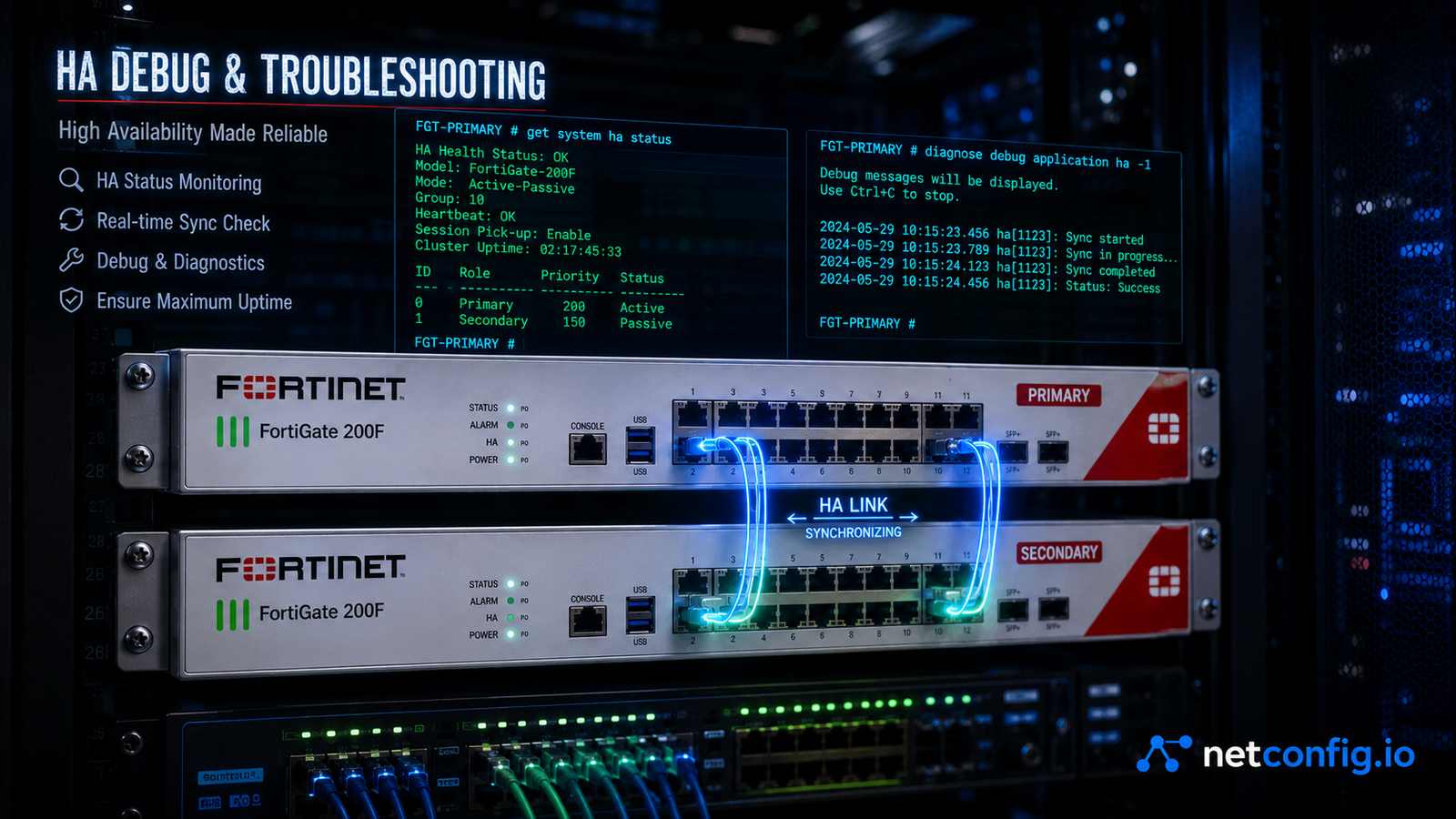
I keep coming back to this same set of commands every time an HA pair acts up, so I put them all in one place. When a FortiGate cluster fails to sync, a heartbeat link degrades, or you hit an unexpected failover, knowing the right command beats hunting through the GUI. Whether you’re chasing a split-brain scenario, an MD5 checksum mismatch, or forcing a full config resync, this covers every show, get, and diagnose debug command I actually use to troubleshoot FortiGate HA clusters.
SECTION 1 – HA STATUS & OVERVIEW COMMANDS
Primary Status Commands — Start Here Every Time
Complete HA status — the single most useful HA command
get system ha statusThe first command to run for any HA issue. Shows every critical HA parameter in one output:
| Field | Meaning |
Model | FortiGate hardware model — must match on both units |
Mode | a-a (active-active) or a-p (active-passive) |
Group ID | HA group identifier — must match on both units |
Debug | HA debug level currently set |
Cluster uptime | How long the cluster has been running as a pair |
Master selected using | The tiebreaker that determined which unit is primary — override, uptime, priority, serial number |
ses pickups | Session pickup count — sessions transferred to peer after failover |
Average CPU usage | Per-unit CPU — used in load balancing decisions in A-A mode |
Average memory | Per-unit memory usage |
Average network | Per-unit network throughput |
Primary | Serial number and hostname of current primary unit |
Secondary | Serial number and hostname of current secondary unit |
number of vcluster | Number of virtual clusters (relevant in VDOM environments) |
HA peer information — detailed per-unit view
diagnose sys ha statusExtended version of the above. Adds:
| Field | Meaning |
HA group name | Configured cluster name |
HA group id | Numeric group ID |
HA formation | Forming or Formed — Forming means cluster is not yet stable |
Slave(s) | Secondary unit details including IP, priority, and uptime |
hb_lost_cnt | Heartbeat lost packet counter — should be zero or near zero |
hb_interface | Which interfaces are carrying HA heartbeat traffic |
Per-unit HA statistics
diagnose sys ha dump-by vclusterDumps complete HA cluster state per virtual cluster. Shows session synchronisation state, interface monitoring status, and failover history. Use in multi-VDOM environments to see HA state per VDOM.
Check HA configuration on both units
show system haShows the full HA configuration block — mode, group-id, group-name, password, heartbeat interfaces, monitored interfaces, priority, override setting, session-pickup config, and synchronisation settings. Run on both units and compare output — any difference is a potential instability source.
HA uptime and failover history
diagnose sys ha history readShows the HA event history — every failover, unit join/leave, interface link change, and heartbeat loss event with timestamps. Essential for understanding why a failover occurred and when.
Read Also :
- FortiGate Packet Flow & IPsec Debug
- Meraki API Updating VLANs
- Learn Cisco Meraki API
- How to Get Your Organization ID and Network ID
SECTION 2 — HA HEARTBEAT & LINK MONITORING
Heartbeat Commands
Check heartbeat interface statistics
diagnose ha hb-statShows heartbeat packet counters per heartbeat interface:
| Field | Meaning |
tx | Heartbeat packets transmitted |
rx | Heartbeat packets received from peer |
lost | Heartbeat packets lost — anything above zero is a warning |
age | Age of last received heartbeat in milliseconds |
intfname | Interface carrying the heartbeat |
A rising lost counter means the heartbeat link is degraded — even before a full failover triggers.
Check heartbeat interface configuration
show system ha | grep hbdevShows which interfaces are configured as heartbeat devices and their priorities. HA heartbeat should run on dedicated interfaces, not shared data interfaces.
Heartbeat packet debug — raw HA protocol
diagnose debug application hatalk -1
diagnose debug enable
hatalk is the HA heartbeat and state synchronisation daemon. Shows every heartbeat exchange, state advertisement, and role negotiation message between cluster units. Use when units are not forming a cluster or are repeatedly renegotiating roles.
Check HA heartbeat interface connectivity
diagnose ha heartbeat listLists active heartbeat interfaces with their current link state and packet statistics. An interface showing down here means the heartbeat path is broken on that link.
Test heartbeat path with ping (from primary to secondary)
execute ha manage <secondary-index> adminOpens a CLI session on the secondary unit from the primary. Then:
execute ping <primary-heartbeat-ip>Tests Layer 3 reachability over the heartbeat link. If this fails, check the cable, switch, or VLAN between the two units.
Interface Monitoring Commands
Check monitored interface status
diagnose sys ha interface-statsShows all interfaces being monitored by HA with their current status. A monitored interface going down triggers a failover if the secondary has that interface up. Output fields:
| Field | Meaning |
intfname | Interface name |
status | up or down |
fail_cnt | Number of times this interface has triggered HA action |
weight | Interface weight used in failover decision (default all equal) |
Check which interfaces are configured for HA monitoring
show system ha | grep monitorShows monitor lines in HA config. Only interfaces listed here trigger failover when they go down. An interface not in this list can go down without affecting HA roles.
Interface weight in HA decision
diagnose sys ha port-statsShows per-port HA statistics including the weight each interface contributes to the unit’s HA score. The unit with the higher score becomes primary.
SECTION 3 — HA SYNCHRONISATION
Config Sync Commands
Check configuration synchronisation status
diagnose sys ha showcsumThe most important sync verification command. Shows MD5 checksums for every configuration domain across both cluster units. A matching checksum means configs are in sync. A mismatch means the secondary has drifted.
Output structure:
is_manage_master()=1, is_root_master()=1
debugzone
 global: checksum
 root: checksum
 sum: checksum
datazone
 global: checksum
 root: checksum
sum: checksum| Section | Meaning |
debugzone | Checksum of FortiOS configuration objects |
datazone | Checksum of operational data (sessions, ARP, routes) |
global | Global configuration checksum |
root | Root VDOM configuration checksum |
sum | Combined checksum — this is the top-level match indicator |
If sum values differ between primary and secondary, configs are out of sync.
Detailed checksum per configuration domain
diagnose sys ha checksum showShows per-object checksums broken down by configuration category — interfaces, policies, routing, VPN, users, and so on. Use this to identify which specific configuration domain is out of sync when showcsum shows a mismatch.
Checksum for a specific VDOM
diagnose sys ha checksum show <vdom-name>Filters checksum output to a specific VDOM. In multi-VDOM environments this isolates whether a sync issue is global or VDOM-specific.
Live configuration sync debug
diagnose debug application hasync -1
diagnose debug enable
hasync is the HA configuration synchronisation daemon. Shows every config object being pushed from primary to secondary, acknowledgements, and any sync failures. Run when secondary is consistently out of sync or after a config change that didn’t replicate.
Force a full configuration re-synchronisation
execute ha synchronize startForces the primary to push its complete configuration to the secondary. Use after manually resolving a sync conflict or when checksums are mismatched and you want to force alignment. The secondary will apply the primary’s config in full.
Check sync queue depth
diagnose debug application hasync 4
diagnose debug enable
Level 4 shows the synchronisation queue — pending config objects waiting to be pushed to the secondary. A large queue means sync is falling behind — usually indicates a high rate of config changes or a slow heartbeat link.
Session synchronisation status
diagnose sys session-sync statusShows the session synchronisation state — how many sessions are queued for sync, how many have been synced, and the sync rate. In active-passive mode, synced sessions survive a failover without dropping.
diagnose sys session-sync statsCumulative session sync statistics — total sessions synced, sync errors, and bypass count (sessions that were not synced due to age or type).
Check which session types are synced
show system ha | grep sessionShows session-pickup configuration — whether session pickup is enabled for TCP, UDP, ICMP, and expectation sessions. Sessions not enabled for pickup will drop on failover.
SECTION 4 — HA FAILOVER COMMANDS
Failover Verification
Check failover reason from event log
diagnose sys ha history readShows HA event log with failover reasons. Each entry includes:
| Field | Meaning |
timestamp | Exact time of the event |
event | master-change, slave-join, if-down, hb-lost |
reason | Why the event occurred |
old-master | Serial number of previous primary |
new-master | Serial number of new primary |
Manually trigger a failover (for testing)
diagnose sys ha reset-uptimeResets the uptime counter on the primary unit. If override is disabled, the secondary (with higher or equal uptime) may take over. Use in a maintenance window to test failover without a real fault.
execute ha failover set 1Forces an immediate role swap — current primary becomes secondary and vice versa. Use for planned maintenance or failover testing.
execute ha failover unset 1Clears the forced failover state and allows normal HA election to resume.
Check if override is enabled
show system ha | grep overrideoverride enable means the unit with the highest priority always becomes primary after any negotiation — even after a failover, it will preempt back. override disable means the current primary stays primary unless it fails — more stable for production.
HA priority verification
show system ha | grep priorityShows the configured priority on this unit. Higher priority = preferred primary. Must be different on each unit if override enable is set — identical priorities fall back to serial number comparison.
SECTION 5 — HA DEBUG COMMANDS
Core HA Debug
HA master election debug
diagnose debug application hatalk -1
diagnose debug enable
Shows the full master election process — hello messages, capability advertisements, priority comparison, and the final role decision. Use when units are repeatedly renegotiating or the wrong unit is becoming primary.
HA config sync debug
diagnose debug application hasync -1
diagnose debug enable
Shows configuration replication events — which objects are being pushed, acknowledgements, and failures. Use when checksums are mismatched or configuration changes on the primary aren’t appearing on the secondary.
HA daemon debug
diagnose debug application had -1
diagnose debug enable
had is the main HA daemon that coordinates all HA functions. Shows high-level HA events — cluster formation, role changes, interface monitoring events, and daemon restarts.
HA link monitoring debug
diagnose debug application halink -1
diagnose debug enable
Shows interface monitoring events — link state changes on monitored interfaces and the HA score recalculation triggered by each event. Use when a monitored interface going down is not triggering the expected failover.
HA session synchronisation debug
diagnose debug application hasession -1
diagnose debug enable
Shows session sync events — individual sessions being queued for sync, sync completions, and errors. Use when sessions are dropping after failover despite session-pickup being enabled.
HA firmware and version consistency check
get system status | grep VersionRun on both units. FortiOS version must be identical on both cluster members. A version mismatch after a partial upgrade causes HA instability and sync failures.
HA serial number and model verification
get system status | grep Serial
get system status | grep Model
Run on both units. Model must be identical (you cannot cluster a 60F with a 80F). Serial numbers must differ — identical serial numbers indicate a cloning issue.
Full Debug Stack — All HA Daemons Together
For complex HA issues where the failure mode is unclear, run all HA daemons simultaneously:
diagnose debug reset
diagnose debug disable
diagnose debug application hatalk -1
diagnose debug application hasync -1
diagnose debug application had -1
diagnose debug application halink -1
diagnose debug enable
This produces the complete HA event stream. Capture the output to a file — it will be verbose.
SECTION 6 — HA CHECKSUM — DEEP DIVE
Understanding and Using Checksums
Show full checksum for both units simultaneously
Run on primary:
diagnose sys ha showcsumThen connect to secondary:
execute ha manage 1 admin
diagnose sys ha showcsum
Compare the sum: line in each output. Matching = in sync. Different = sync issue.
Detailed per-category checksum breakdown
diagnose sys ha checksum showFull output on a healthy cluster (both units must show identical values):
global:
 system.checksum: a1b2c3d4
 router.checksum: e5f6g7h8
 firewall.checksum: i9j0k1l2
 vpn.checksum: m3n4o5p6
 user.checksum: q7r8s9t0
 certificate.checksum: u1v2w3x4
 log.checksum: y5z6a7b8

root (VDOM):
 policy.checksum: c9d0e1f2
 address.checksum: g3h4i5j6
 service.checksum: k7l8m9n0
 routing.checksum: o1p2q3r4
 sum: s5t6u7v8
Each category corresponds to a configuration domain. When a specific category checksum differs, that tells you exactly which config area is out of sync — no need to compare the entire config manually.
Checksum after a config change — verify sync propagated
# Make a config change on primary

# Wait 10-15 seconds for sync

diagnose sys ha showcsum
execute ha manage 1 admin
diagnose sys ha showcsum
# Compare — sums should match after sync completes
Force checksum recalculation
diagnose sys ha checksum recalculateForces the HA daemon to recalculate all checksums from the current running config. Use when you suspect a stale checksum is showing a false mismatch.
Checksum mismatch resolution workflow
# Step 1 — identify which domain is mismatched

diagnose sys ha checksum show

# Step 2 — check if sync is still in progress

diagnose debug application hasync 4
diagnose debug enable
# Wait 30 seconds and check if checksums converge


# Step 3 — if still mismatched, force resync

execute ha synchronize start

# Step 4 — wait 60 seconds then recheck

diagnose sys ha showcsum

# Step 5 — if still mismatched, check sync errors

diagnose debug application hasync -1
diagnose debug enable
# Look for error messages in sync output


# Step 6 — last resort — reboot secondary

# Primary continues forwarding uninterrupted

execute ha manage 1 admin
execute reboot
SECTION 7 — HA SECONDARY UNIT ACCESS
Accessing the Secondary Unit CLI
Open CLI session on secondary from primary
execute ha manage <index> <admin-user>Opens a direct CLI session on the secondary unit proxied through the primary. The <index> is the secondary unit’s position in the cluster — usually 1 for the first secondary.
Example:
execute ha manage 1 adminYou are now on the secondary CLI. All commands run here execute on the secondary unit. Type exit to return to the primary.
Find the secondary unit index
get system ha statusThe secondary unit’s index number appears next to its serial number in the output. In a two-unit cluster the secondary is always index 1.
Run a command on the secondary without staying in its session
execute ha manage 1 admin "diagnose sys ha showcsum"Some FortiOS versions allow passing a command string directly. Returns the output to your current primary session.
Check secondary unit resource usage
execute ha manage 1 admin
get system performance status
Run on the secondary to check CPU, memory, and session count. Compare with the primary — significant differences indicate load imbalance or a hardware issue on one unit.
SECTION 8 — HA SHOW & GET COMMANDS — COMPLETE LIST
Configuration commands
show system haFull HA configuration — mode, password, heartbeat interfaces, monitored interfaces, priority, session-pickup, and sync settings.
show system ha | grep modeQuick check of HA mode (a-p or a-a).
show system ha | grep priorityPriority value on this unit.
show system ha | grep overrideOverride setting — enable means highest priority always wins.
show system ha | grep monitorMonitored interfaces list.
show system ha | grep hbdevHeartbeat interface(s) and their priorities.
show system ha | grep sessionSession pickup configuration.
show system ha | grep passwordShows whether HA password is set (value is encrypted — confirms it is configured).
Status commands
get system ha statusPrimary HA status overview including master selection reason and per-unit stats.
get system performance statusCPU, memory, and network usage — run on both units to compare.
get system statusFortiOS version, serial number, model — run on both units to verify hardware and software match.
get hardware nic <interface>Physical NIC stats for a specific interface — errors, drops, speed, duplex. Use for heartbeat interface hardware diagnostics.
SECTION 9 — HA TROUBLESHOOTING SCENARIOS
Scenario 1 — Units Not Forming a Cluster
# Check both units are seeing each other

diagnose sys ha status
# Look for 'HA group formation: Forming' — means not yet paired


# Debug heartbeat messages

diagnose debug application hatalk -1
diagnose debug enable
# Look for 'hello' messages from peer — if none, heartbeat link is broken


# Verify heartbeat interface is up

diagnose ha hb-stat
# Check for non-zero 'rx' counter — if rx=0, no heartbeat received from peer


# Check HA config matches on both units

show system ha
# Group-id, group-name, password, and mode must be identical
Scenario 2 — Repeated Failovers (Flapping)
# Check failover history

diagnose sys ha history read
# Identify the trigger — interface down, heartbeat loss, or manual


# Check heartbeat loss counter

diagnose ha hb-stat
# Rising 'lost' counter = intermittent heartbeat link issue


# Check monitored interface stability

diagnose sys ha interface-stats
# Rising 'fail_cnt' = interface is flapping


# Check for split-brain (both units think they are primary)

get system ha status
# Run on both units — only one should show as primary
Scenario 3 — Config Not Syncing to Secondary
# Step 1 — confirm checksums differ

diagnose sys ha showcsum
# Run on both units — compare 'sum:' values


# Step 2 — identify which domain is out of sync

diagnose sys ha checksum show

# Step 3 — check sync daemon

diagnose debug application hasync -1
diagnose debug enable
# Look for sync errors or timeouts


# Step 4 — force resync

execute ha synchronize start

# Step 5 — verify after 60 seconds

diagnose sys ha showcsum
Scenario 4 — Sessions Dropping After Failover
# Check session pickup is enabled

show system ha | grep session-pickup
# Must show 'set session-pickup enable'


# Check session sync status

diagnose sys session-sync status
# Confirm sessions are being synced before failover


# Check session sync stats

diagnose sys session-sync stats
# 'sync_errors' count rising = sessions not being synced correctly


# Debug session sync

diagnose debug application hasession -1
diagnose debug enable
# Look for sync failures or capacity issues
Scenario 5 — Wrong Unit Becoming Primary
# Check priority on both units

show system ha | grep priority
# Higher value = preferred primary


# Check override setting

show system ha | grep override
# 'override enable' = highest priority always wins

# 'override disable' = current primary stays primary


# Check master selection reason

get system ha status
# 'Master selected using' field shows why current primary won


# Force correct unit to be primary

# On the unit that SHOULD be primary:

execute ha failover set 1
# Then verify

get system ha status
QUICK REFERENCE — ALL HA COMMANDS BY CATEGORY
Status & Overview
| Command | Purpose |
get system ha status | Full cluster status — start here |
diagnose sys ha status | Extended status with heartbeat counters |
diagnose sys ha dump-by vcluster | Per-VDOM cluster state |
diagnose sys ha history read | Failover event history with timestamps |
diagnose ha hb-stat | Heartbeat packet counters per interface |
diagnose sys ha interface-stats | Monitored interface status and fail counts |
diagnose sys ha port-stats | Per-port HA score contribution |
Checksum & Sync
| Command | Purpose |
diagnose sys ha showcsum | Top-level checksum — primary sync indicator |
diagnose sys ha checksum show | Per-category checksum breakdown |
diagnose sys ha checksum show <vdom> | VDOM-specific checksum |
diagnose sys ha checksum recalculate | Force checksum recalculation |
execute ha synchronize start | Force full config push to secondary |
diagnose sys session-sync status | Session sync queue and state |
diagnose sys session-sync stats | Cumulative session sync counters |
Debug Daemons
| Command | Purpose |
diagnose debug application hatalk -1 | Heartbeat and role election messages |
diagnose debug application hasync -1 | Config synchronisation events |
diagnose debug application had -1 | Main HA daemon events |
diagnose debug application halink -1 | Interface monitoring and HA score events |
diagnose debug application hasession -1 | Session synchronisation events |
Configuration
| Command | Purpose |
show system ha | Full HA config |
show system ha | grep mode | HA mode (a-p / a-a) |
show system ha | grep priority | Unit priority |
show system ha | grep override | Override preemption setting |
show system ha | grep monitor | Monitored interfaces |
show system ha | grep hbdev | Heartbeat interfaces |
show system ha | grep session | Session pickup config |
Failover & Maintenance
| Command | Purpose |
execute ha manage 1 admin | Open CLI on secondary from primary |
execute ha failover set 1 | Force immediate role swap |
execute ha failover unset 1 | Clear forced failover state |
diagnose sys ha reset-uptime | Reset uptime to trigger election |
UNIVERSAL CLEANUP
diagnose debug disable
diagnose debug reset
Related Reading
Troubleshooting a VPN tunnel instead of HA sync? Our Cisco IKEv1 debug commands and states reference walks through the same kind of state-by-state debug analysis, for IKE negotiations instead of HA cluster sync.
🔧 Free Network Tools
Handy while you're troubleshooting — no signup needed.