
Introcution to Web Filter
Shadow IT used to mean someone spinning up an unapproved Dropbox account. These days it means half your org pasting internal docs into ChatGPT without a second thought. I get asked about this constantly right now — “can we even see who’s using AI tools, let alone stop it?” — and the answer is yes, and it’s a lot easier than people expect if you’re already running FortiGate.
This is the first piece in what I’m planning as a short AI-shadowing series on the firewall side. Today’s just the simple version: get visibility into who’s hitting AI tools, then flip a switch to block it outright. No application control, no file-upload-level granularity yet — that’s coming in a later post. For now, this is the fast path.
I’m running this on FortiOS 7.6.6, but the category I’m using here shows up in 7.2, 7.4, 7.6, and the newest 8.0 builds too, so this isn’t version-locked to what I’ve got in the lab.
Step 1: Find the AI Category in Your Web Filter Profile
Head into your Security Profiles and open up the Web Filter profile — I’m using the default profile for this walkthrough, running in proxy-based feature set (this matters, more on that below).
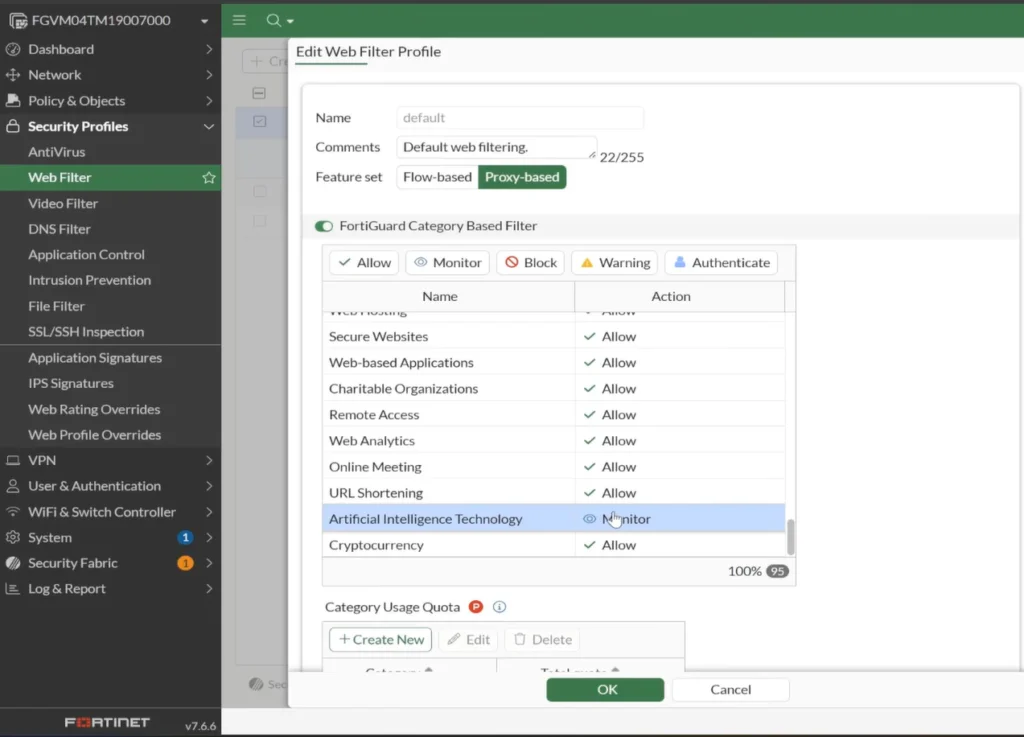
Scroll through the FortiGuard category-based filter list and you’ll find Artificial Intelligence Technology sitting in there as its own category. This isn’t something you need to build yourself — FortiGuard already maintains and rates it.
Set that category’s action to Monitor to start. The point of starting here isn’t to block anything yet — it’s to get visibility into what’s actually happening before you make a decision that might annoy half the building.
Step 2: Apply the Profile and Set Inspection Mode
This Web Filter profile needs to be attached to your LAN-to-Internet policy, and that policy needs to be running in proxy mode for this to work the way I’m showing it.
On the inspection side, I’ve set this to certificate inspection as the starting point. Here’s why that matters: certificate inspection gives FortiGate visibility into the TLS/SSL handshake — it can read certificate details and things like the SNI field to figure out where a browser session is actually headed, without decrypting the full payload. For the vast majority of AI sites, that’s enough to identify the destination correctly.
But it’s not bulletproof. If a session is encrypted in a way that doesn’t expose enough in the certificate or handshake for FortiGate to positively ID the destination, certificate inspection alone won’t catch it. In that case, you’d want to move to deep inspection, where FortiGate actually decrypts and inspects the payload itself. I’m sticking with certificate inspection for this walkthrough since it’s the more common starting point, but keep deep inspection in your back pocket if you notice AI traffic slipping past.
Step 3: Confirm Traffic Is Passing (Monitor Mode)
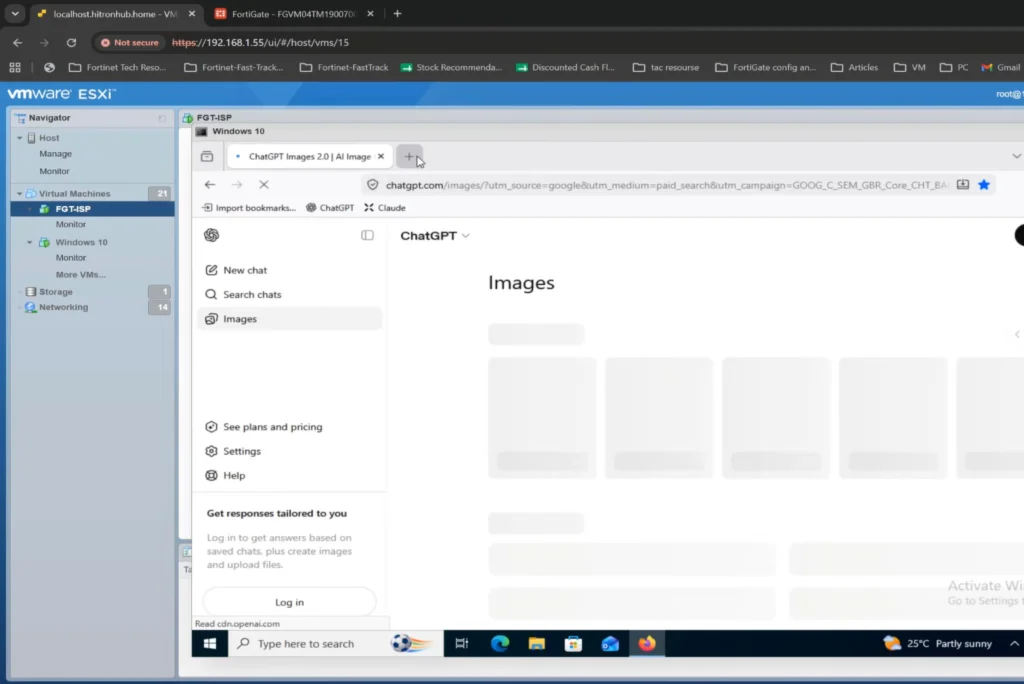
With the category set to Monitor, I went to a client machine and browsed to a couple of AI tools — ChatGPT, then Claude. Both loaded fine, which is expected, since Monitor doesn’t block anything — it just watches and logs.
Step 4: Use FortiView to See Who’s Actually Using What
This is honestly the part that sells the whole exercise to anyone who’s skeptical. Go to Dashboard > FortiView > Websites. Switch the time window to Previous 24 Hours and you’ll get a full picture of what’s been browsed.
Find the AI entry — ChatGPT showed up for me with an active session running live — and click into it. From there you can drill into:
- The session logs
- The exact destination the session is hitting
- The source user tied to that session
And from that same drill-down view, you can build a policy directly off the identified IP address if you want to act on it immediately. As a shadow-IT discovery tool, this view alone is worth the five minutes it takes to check it.
Step 5: Switch the Action to Block
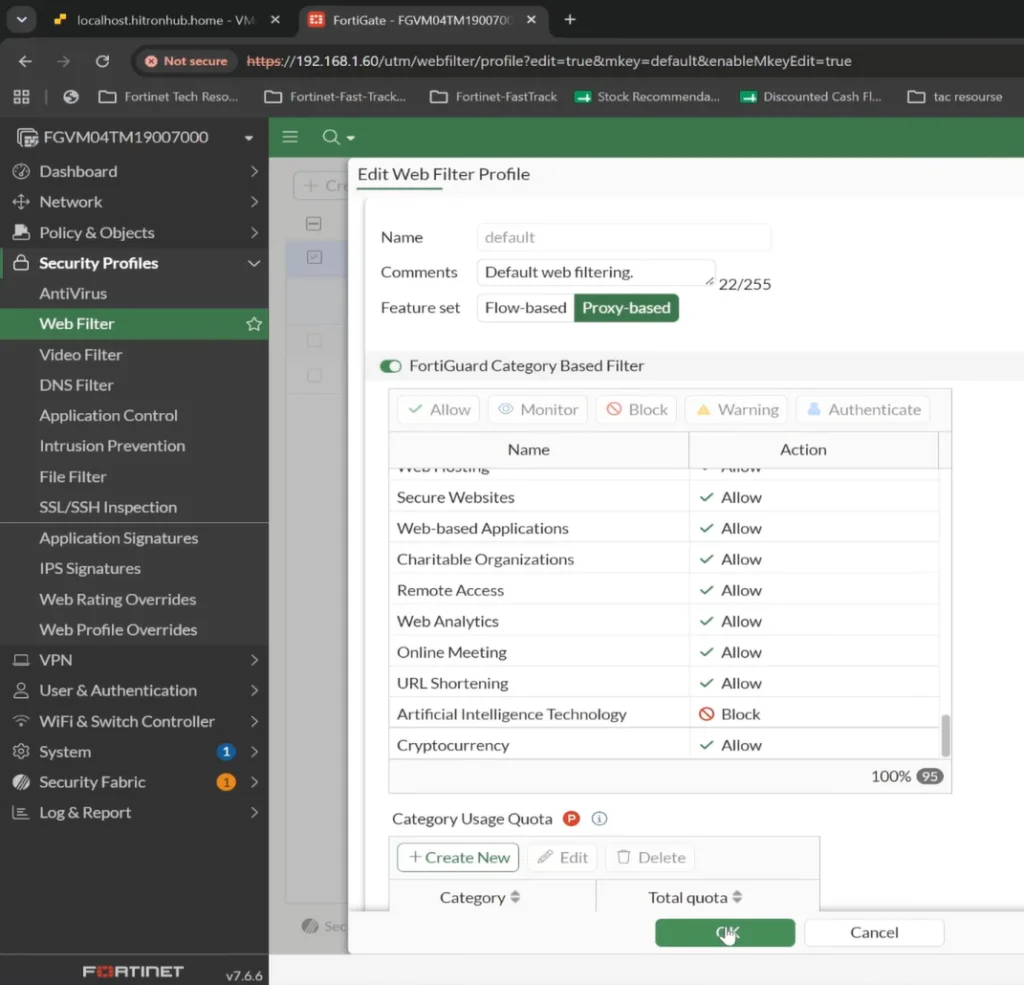
Once you’ve got a sense of who’s using what, it’s time to actually enforce something. Back in the Web Filter profile, change the Artificial Intelligence Technology category action from Monitor to Block.
Worth knowing: Block isn’t your only enforcement option here. You’ve also got:
- Warning — the user hits a warning page (customizable) and has to click “Proceed” to continue, or you can require re-authentication instead.
- Block — the connection is stopped outright, no user override.
I set it to Block for this demo since it’s the cleanest way to show the enforcement working end to end.
Step 6: Verify the Block in the Logs
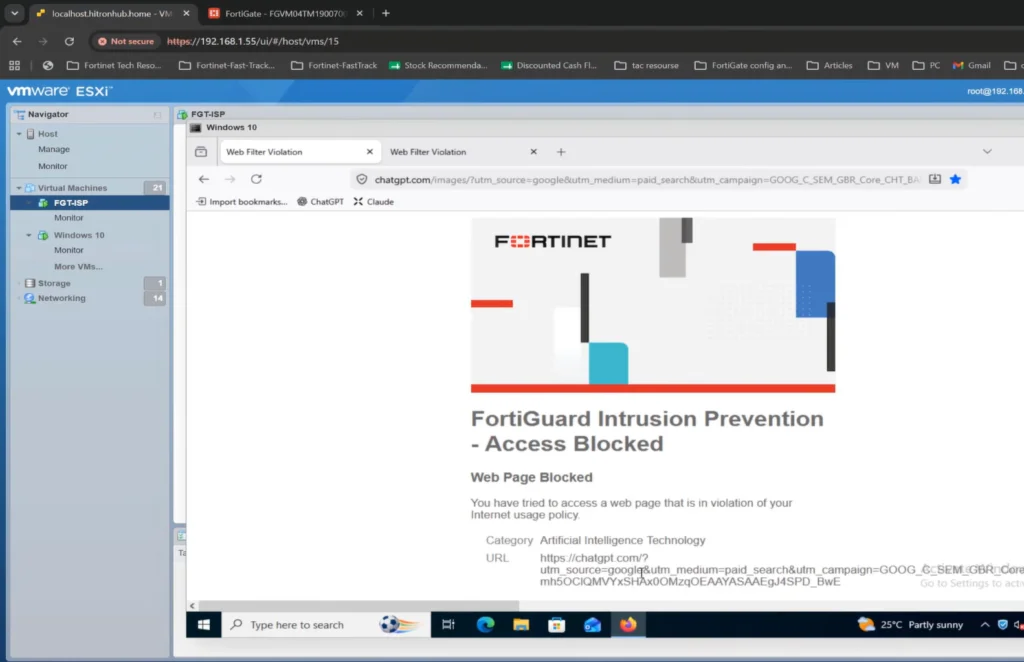
After switching to Block, I closed the browser session and tried loading ChatGPT and Claude again. Both attempts hit a wall.
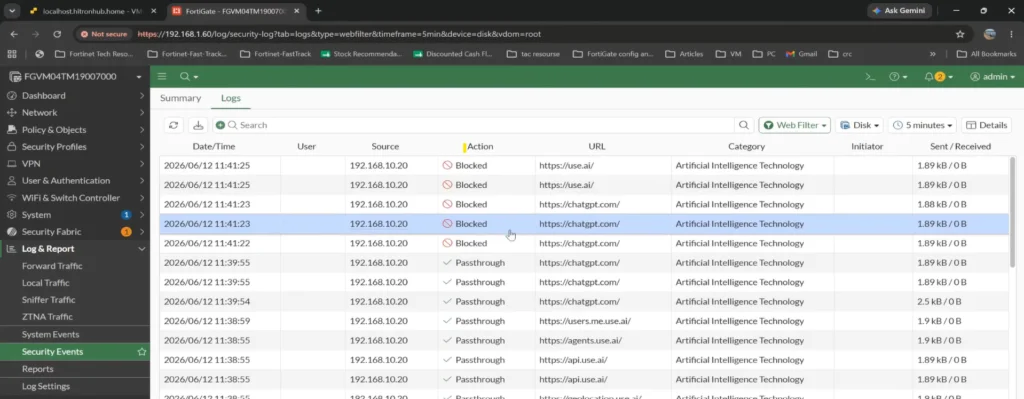
To confirm it in the logs, go to Log & Report > Security Events, then check the Web Filter log. A quick note from my own run-through: the log initially still showed the old pass-through entries from when the category was set to Monitor, so give it a moment and narrow the filter down to the last five minutes if you’re not seeing the new blocked sessions right away.
Once the correct entries show up, you’ll see the session flagged with the block action, referencing the Artificial Intelligence Technology category, along with the policy ID and the rest of the standard log detail — source, destination, action taken.
What This Setup Does (and Doesn’t) Cover
What you get out of this configuration is a blanket action across the entire AI category — every site FortiGuard has tagged under Artificial Intelligence Technology gets treated the same way, whatever action you picked.
If you need something more surgical — blocking one specific AI tool while leaving others open, for instance — a Static URL Filter entry can get you there for individual domains. But if you want real granularity — like allowing users to browse to an AI tool but blocking file uploads specifically — that’s a job for Application Control, not the category-based web filter. That level of control is its own topic and I’ll be covering it in a future post in this series.
FAQ
Q: Do I need deep inspection to block AI tools, or does certificate inspection work?
A: Certificate inspection is usually enough, since it reads the TLS handshake and certificate details (including SNI) to identify the destination. Deep inspection becomes necessary only if a session doesn’t expose enough information in the handshake for FortiGate to positively identify where it’s going.Q: Does the Web Filter profile need to be in proxy mode for this to work?
A: Yes, for the setup shown here, the feature set is proxy-based, and the profile is applied to a policy running in proxy inspection mode.Q: What’s the difference between Monitor and Block for the AI category?
A: Monitor lets traffic through untouched but logs the sessions, giving you visibility without disrupting users. Block terminates the connection outright. There’s also a Warning action that shows the user a customizable page they can click through, or that can require re-authentication.Q: Can I block just ChatGPT and allow other AI tools?
A: Category-based web filtering applies to the whole Artificial Intelligence Technology category at once. For blocking individual AI sites specifically, use a Static URL Filter entry instead. For more granular control — like allowing browsing but blocking file uploads to a specific AI tool — you’d need Application Control.Q: Which FortiOS versions include the Artificial Intelligence Technology category?
A: It’s present in 7.2, 7.4, 7.6, and 8.0 builds.
Read More- FortiASIC Architecture
Related guides: FortiOS WebSocket DLP for Microsoft Copilot chats
🔧 Free Network Tools
Handy while you're troubleshooting — no signup needed.
Thanks for sharing